![pcnametag-logo-250px.png]](https://support.pcnametag.com/hs-fs/hubfs/pcnametag-logo-250px.png?height=40&name=pcnametag-logo-250px.png)
Google Chrome
We highly recommend logging into your pc/nametag web account prior to performing the below steps as your shopping cart will be saved to your account.
If you do not currently have a pc/nametag web account, we recommend signing up for an account via the My Account button at the top of the page.
Doing so prior to performing the below steps will also save your shopping cart to your account.
Once you have completed the below actions, sign back into your pc/nametag web account and your shopping cart will repopulate.
There are two methods you can try if you are experiencing issues with your webstore checkout.
Option 1: Try placing your order via an Incognito window. Please Note: When opening an Incognito window, the items in your cart will not transfer over. You must re-add items to your cart prior to processing the order. To open an Incognito window in Google Chrome, click on the three dots in the upper right-hand corner next to your profile image to open the menu and select “New Incognito window.” Or you may use Ctrl+Shift+N.
Option 2: Try clearing your browser cookies before placing your order.
To clear your cookies when using Google Chrome, click on the three dots
in the upper right-hand side next to your profile image to open the menu. Or you may use Ctrl+Shift+Del.
Next, hover over “More tools” and select “Clear
browsing data...”
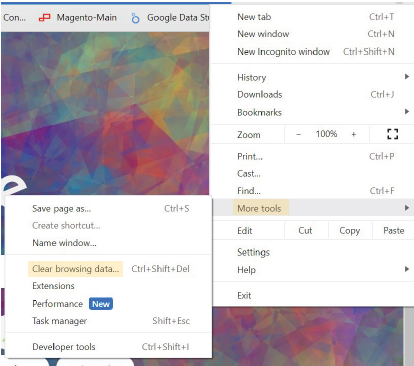
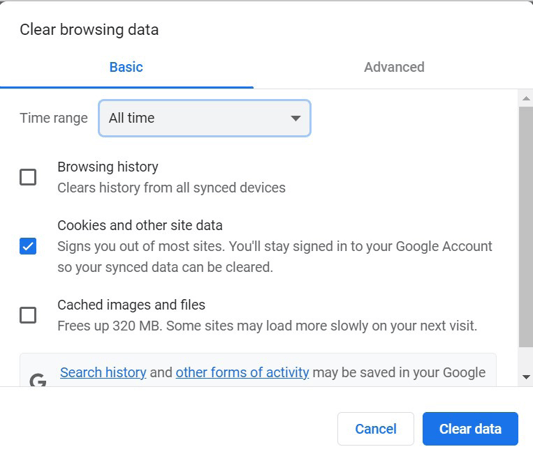
In the new window that opens, select the “Basic” tab at the top.
Next, change the time range to “All time” and check the box for
“Cookies and other site data.” Finally, click Clear data.
You will want to close out of your browser completely for the changes to take effect. You may now open a new browser window and try placing your order.
Microsoft Edge
We highly recommend logging into your pc/nametag web account prior to performing the below steps as your shopping cart will be saved to your account.
If you do not currently have a pc/nametag web account, we recommend signing up for an account via the My Account button at the top of the page.
Doing so prior to performing the below steps will also save your shopping cart to your account.
Once you have completed the below actions, sign back into your pc/nametag web account and your shopping cart will repopulate.
There are two methods you can try if you are experiencing issues with your webstore checkout.
Option 1: Try placing your order via an InPrivate window. Please Note: When opening an InPrivate window, the items in your cart will not transfer over. You must re-add items to your cart prior to processing the order. To open an InPrivate window in Microsoft Edge, click on the three dots in the upper right-hand corner next to your profile image to open the menu and select “New InPrivate window.” Or you may use Ctrl+Shift+N.
Option 2: Try clearing your browser cookies before placing your order.
To clear your cookies when using Microsoft Edge, click on the three dots in the
upper right-hand side next to your profile image to open the menu and select “Settings.”
In the new window that opens, select “Cookies and site permissions” on the lefthand
side.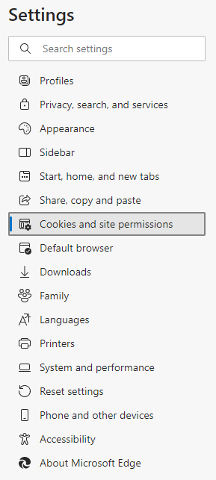
Next, click on “Manage and delete cookies
and site data” under the Cookies and data
stored section.

Now select “See all cookies and site data.”
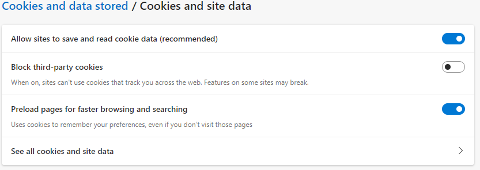
At the top of the screen, click the “Remove all” button and
click the blue Clear button that pops up.

You will want to close out of your browser completely for the changes to take effect. You may now open a new browser window and try placing your order.